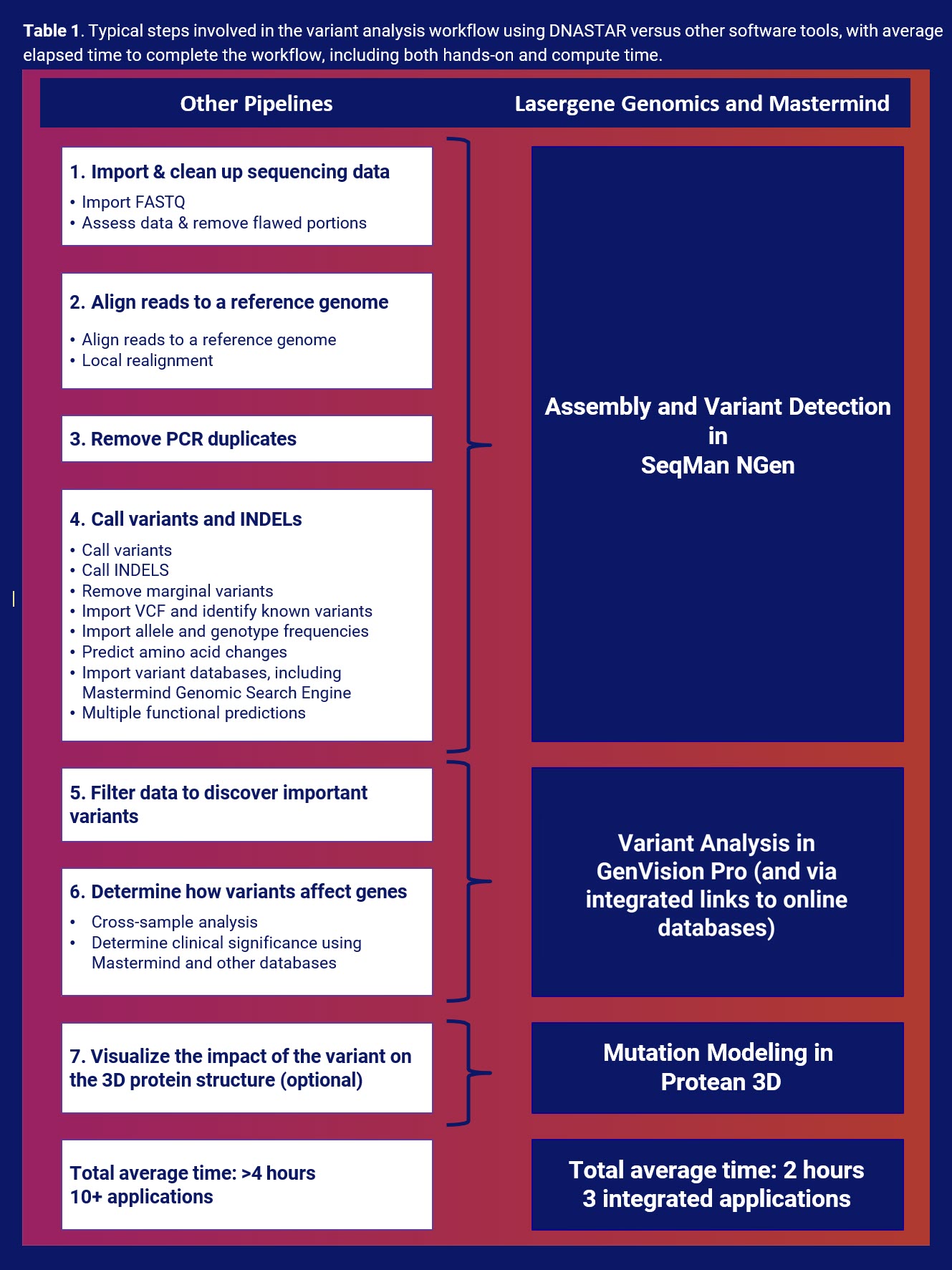


7 STEPS FOR VARIANT ANALYSIS

Chapter 2: Using Lasergene Genomics to Streamline Variant Analysis
How it works
With Lasergene Genomics, just two applications are required to get meaningful variant results. These results can be further explored by clicking links to online database entries for that variant. Once you’ve identified variants of interest, you have the option to do further downstream analysis and visualization within Lasergene.

The Lasergene Genomics variant analysis pipeline is completely different from the open-source software or other commercial software described in Chapter 1.
Instead of using separate tools and requiring multiple manual interventions at each step, Lasergene automates most of these steps into one application: SeqMan NGen. After assembly completes, variant analysis is performed using GenVision Pro. Other analysis and visualizations can be performed in other fully integrated Lasergene applications, if desired.
To download this entire ebook as a PDF, click here.
Getting Started: Assembly and Variant Calling in SeqMan NGen
After launching SeqMan NGen, the Workflow screen (Figure 1) prompts you to choose a workflow. Select either the Variant Analysis/Resequencing workflow or the RNA-Seq/Transcriptomics workflow if you have raw sequence read data; or the Variant Call Format (VCF) File workflow if your data has already been assembled and the variants detected and saved to VCF format.
Figure 1. SeqMan NGen’s multi-tabbed Workflow screen is the starting point for the project.
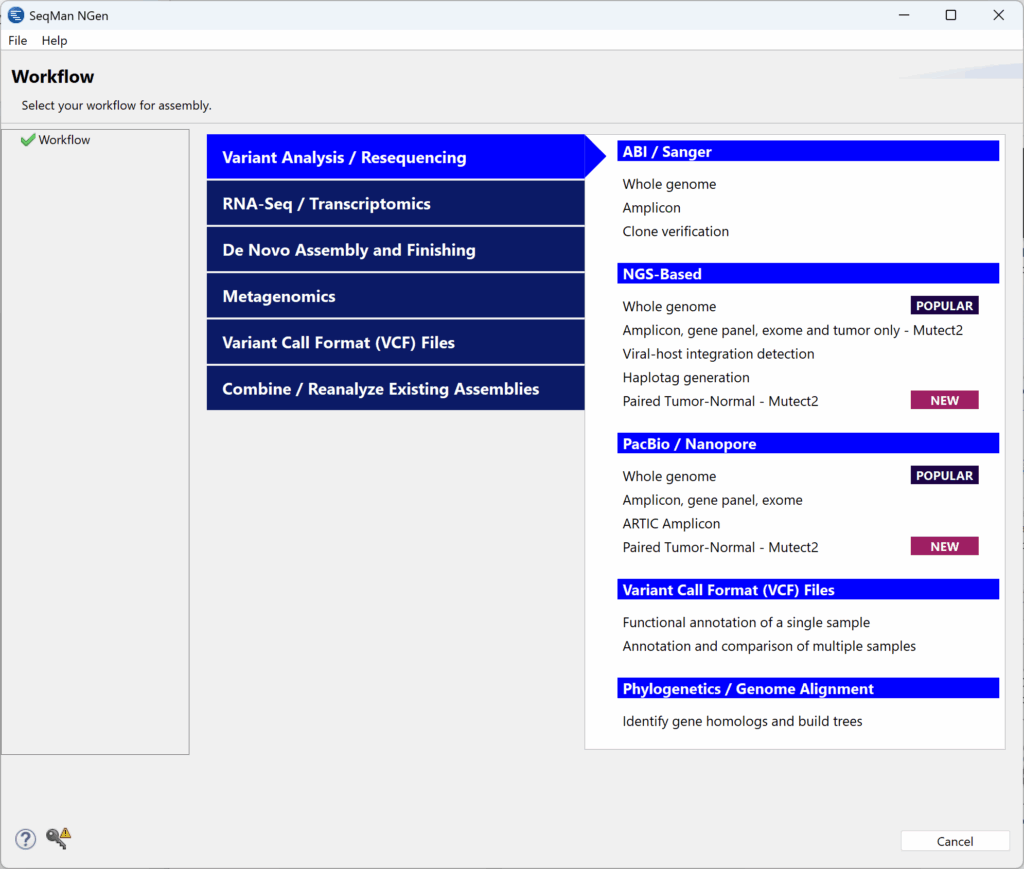
SeqMan NGen guides you through the setup for one or multiple samples, auto-grouping and auto-naming FASTQ input files so that assembly (or VCF import), paired tumor-normal experiments, tumor-only experiments, variant detection parameters, variant filtering, sample cross comparison, and variant annotation are all run autonomously. SeqMan NGen supports a wide variety of file types and read technologies.
You can choose to import a custom VCF file and/or BED file to incorporate into your assembly. Adding these files now means the assembled project will include known variants of interest and defined targeted regions, respectively. This information can be used as filtering criteria without requiring you to import additional data after assembly.
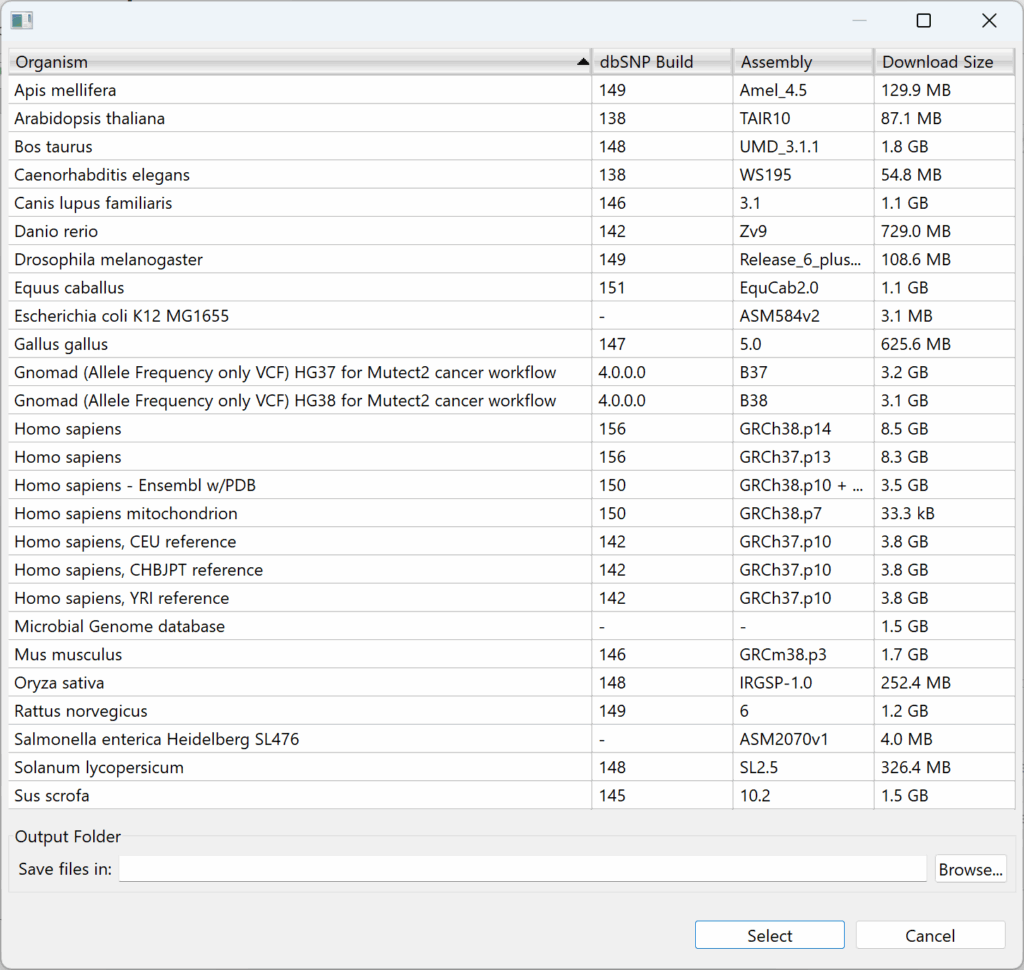
Choose to upload a reference sequence or use one of the curated Genome Template Packages provided for common model organisms, including many versions of the human genome (Figure 2). The Genome Template Packages include both annotated reference chromosomes and the dbSNP database.
Figure 2. This SeqMan NGen popup window lets you choose from a wide variety of available genome packages.
In the Analysis Options screen (Figure 3), specify the variant calling options (diploid, diploid-phased, haploid, somatic), subject gender, and initial variant filtering. The default variant caller uses DNASTAR’s proprietary algorithm, but you can alternatively choose the GATK HaplotypeCaller or GATK Mutect2 for diploid or somatic variant calling. Check the variant annotation database (VAD) box to automatically annotate any found variants with data from online databases.
Figure 3. SeqMan NGen “Analysis Options” screen.
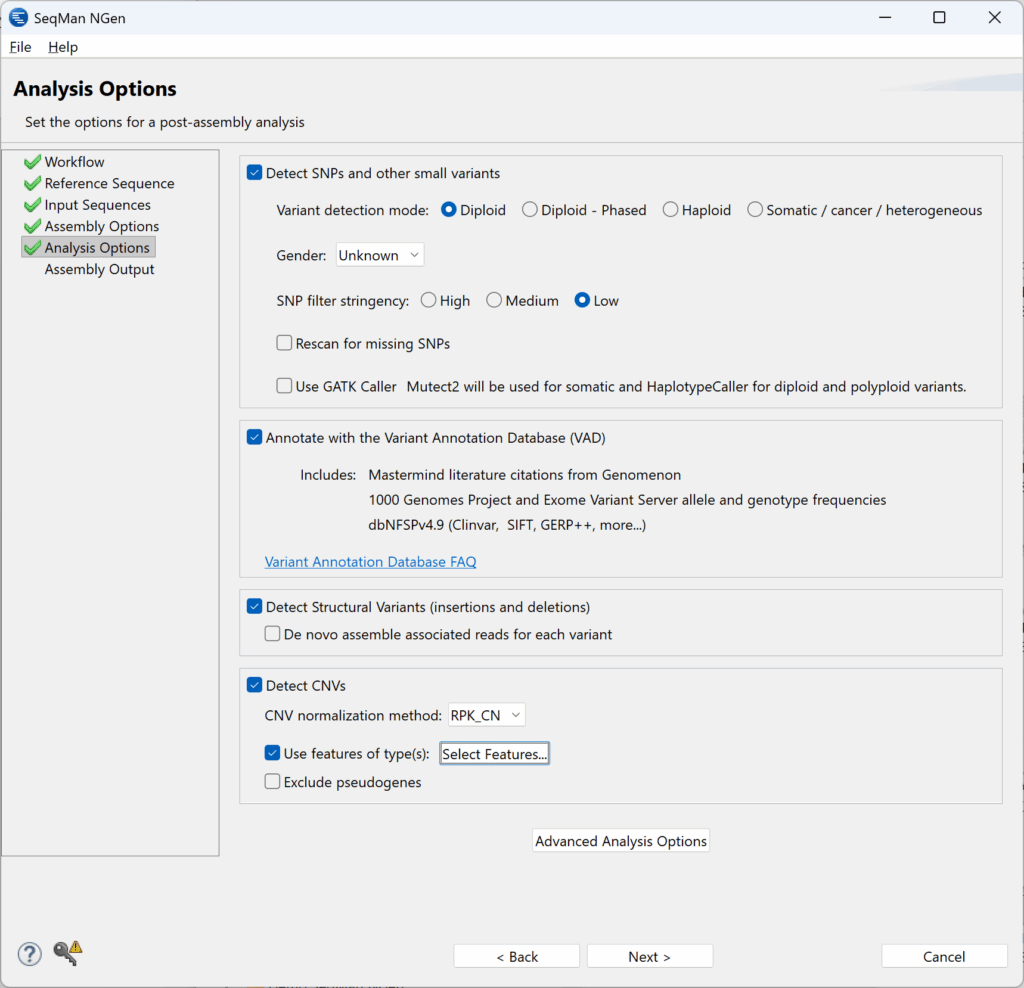
You can also opt to detect CNVs and/or SVs. Choosing these options produces an assembly project that includes assembled data, filtered variant calls, CNVs, SVs, and extensive variant annotations.
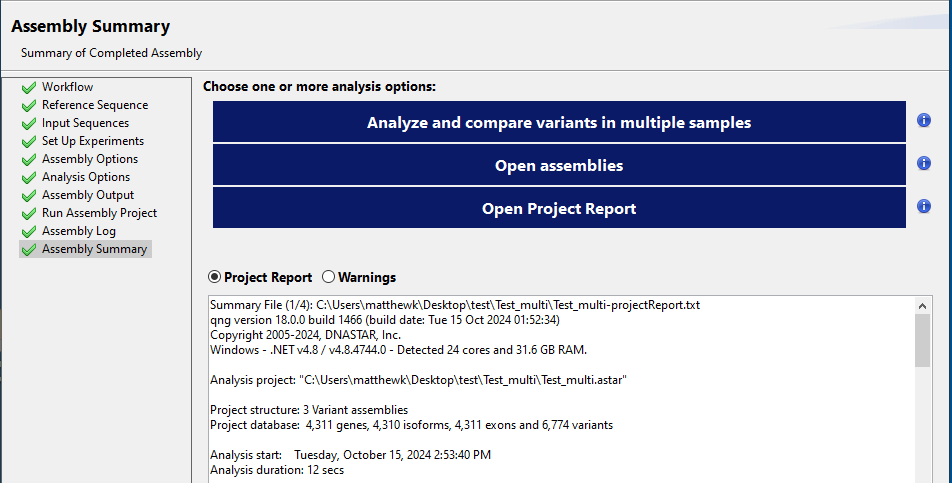
Follow the guided steps to initiate assembly locally or on the cloud. Once assembly is complete, simply press a button to open the assembly in GenVision Pro (Figure 4).
Figure 4. Press the Analyze and compare variants in multiple samples button in the SeqMan NGen Assembly Summary screen to launch the assembly in GenVision Pro.
Analyzing Variants in GenVision Pro
GenVision Pro automates Steps 5-6 from Chapter 1 with versatile filtering tools and rich graphical and tabular displays showing the variant results in context. In addition to the assembly that is already open in GenVision Pro, you can add additional assemblies and perform multi-sample variant analysis on all of them or any subset. You can add SeqMan NGen assemblies, BAM or VCF files, SeqBuilder Pro and MegAlign Pro files, NCBI genomes, BED and Wiggle files, and several others. GenVision Pro is the only software we know of that lets you compare variants from all these different file types at once.
Press the Prepare Variants for Comparison button to create the table of variants (Figure 5). The customizable table allows you to effortlessly add (or remove) data columns with information about each variant. If you add more assemblies to the project, the variants table is recalculated automatically to include the new data.
Figure 5. GenVision Pro displays the Variants table for a human trio analysis. You can specify which data columns to include, of the scores available, and their order of appearance from left to right. Click any column header to sort the table alphanumerically by the contents of that column.
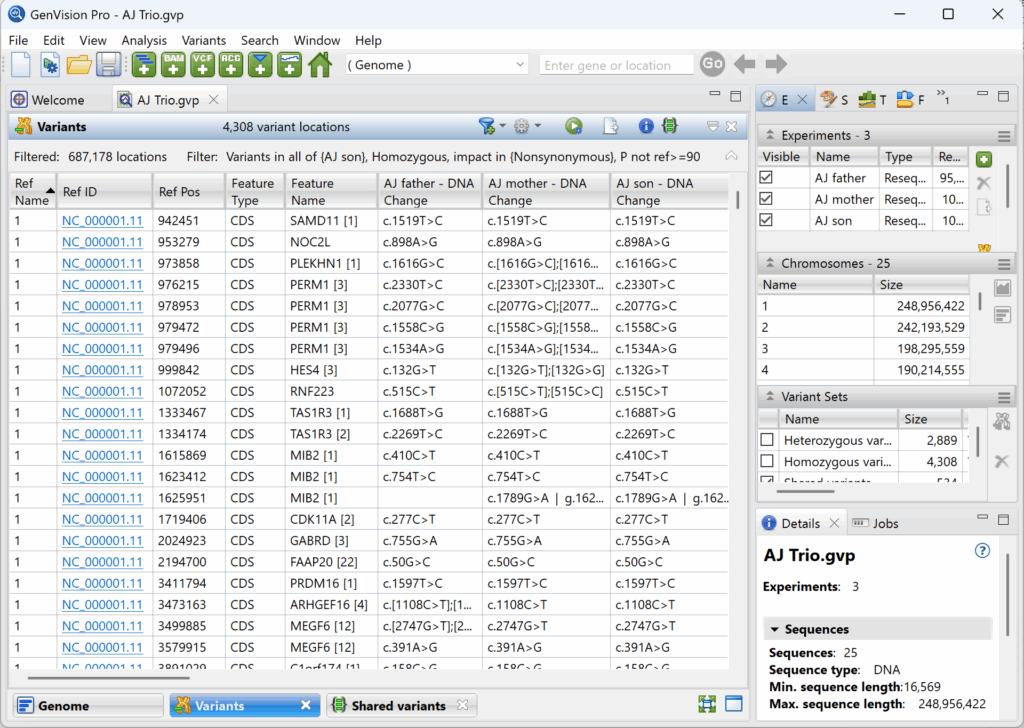
If you are working with human data and checked the VAD box in SeqMan NGen, there are dozens of additional columns to choose from, including the Mastermind Genomic Search Engine, ClinVar, dbSNP, the Gene Ontology Consortium (GO), GERP, MutationTaster, PhastCons, dbNSFP, and many others. The Mastermind and dbSNP columns include links to the online entry for the variant.
Since different human populations have unique alleles, GenVision Pro also provides data columns for allele frequency databases: the 100 Genomes Project, ALPHA, gnomAD and ExAC. Data from these databases can help you investigate whether an allele is common in a population rather than a potential disease-causing SNP.
See the next chapter for an example of how to apply multi-sample variant filtering in GenVision Pro.
Further Exploration of Variants
You can further explore variants of interest and other relevant information from the GenVision Pro variants table as follows:
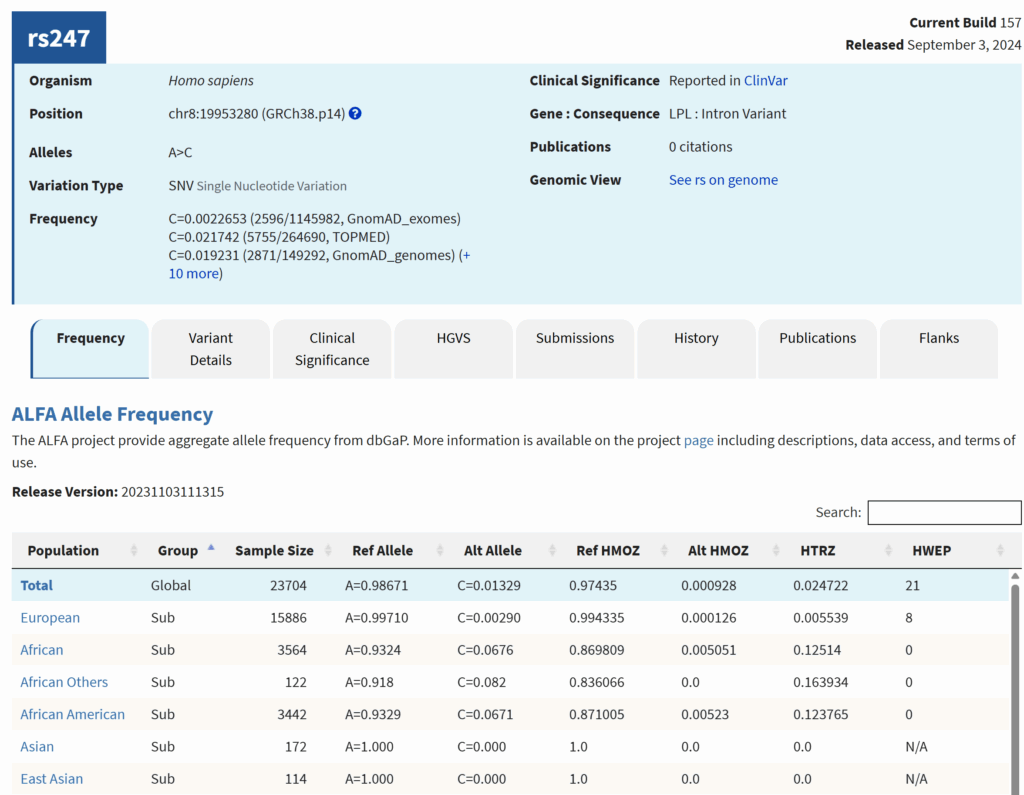
- To see the variant entry in the Single Nucleotide Polymorphism Database (dbSNP) at NCBI, click the link in the dbSNP ID dbSNP (Figure 6, next page) is a free, comprehensive archive of genetic differences found in various species, with a strong focus on human variation. dbSNP primarily catalogs SNPs, but it also includes other variations like indels, microsatellites, and small structural variations.
- To see the variant entry in the Mastermind Genomic Search Engine, click the link in either the MM ID 3 or MM URI Mastermind has both free and paid tiers that let you search for and cross-reference variant data from millions of PubMed articles. Additionally, Mastermind provides entries for millions of variants that are not included in databases such as the Human Gene Mutation Database (HGMD) and differentiates them with much higher precision. Mastermind is able to draw genetic associations between keywords (e.g., genes, variants, diseases, CNVs, phenotypes, and therapies) and deliver a segmented literature output customized for your case.
- To see information about the gene containing the variant in Gene Cards: The Human Gene Database, type the data from the Genes column into the search bar at https://www.genecards.org. Gene Cards pulls together information from multiple other databases and is useful for exploring gene functions and gene-disease associations.
- For information about the protein potentially affected by the variant in UniProt, type the accession ID from the Uniprot_acc column into the search bar at https://www.uniprot.org. UniProt provides detailed information on protein sequences and functions.
In addition, you can use other integrated Lasergene applications to visualize your assembly read alignment and coverage and/or model mutations on protein structure (see Step 7 in Chapter 2).
Figure 6. A portion of a dbSNP entry for variant rs247.
To conclude this section, Table 1 contrasts the time and number of steps to perform variant analysis with DNASTAR software versus competing software.
In the next chapter, we’ll show you an example of how to combine the filtering in GenVision Pro with online database entries to home in on variants of interest in clinical sequencing data.